
Retrieving Images from Maximo Using the REST API
In Maximo Application Suite, documents and images are stored as attachments and linked through DOCLINKS. While this is straightforward in the UI, retrieving these attachments programmatically is less obvious.
This post walks through a simple pattern for using the REST API to:
Maximo does not store document binaries directly on the main business objects. Instead:
Because of this, the process always involves two steps:
In Maximo, I have added my headshot as an attachment to my person records. My person record is PHIL.RUNION for this example. As part of this example, I am going to use the MXPERSON object structure to pull my headshot from my person record using the REST API and Postman.
I am starting with the MXPERSON object structure, duplicating it, and adding the DOCLINKS object as a source object. You can use out-of-the-box object structures if they already have the DOCLINKS source object.
Next I am establishing a basic REST query in Postman to pull my person record. This both establishes a connection that we can build upon but also allows us to pull the document reference for the next step. Not in my query that I am using an oslc where clause to pull only my example record. In addition to this post you will need a header with the key “apikey” and a valid API key with access.
Example GET query in Postman:
https://mas.manage.demo.naviam.app/maximo/api/os/NVMPERSON?oslc.select=personid, displayname, doclinks{*}&oslc.where=personid="PHIL.RUNION"&lean=1
What this does:
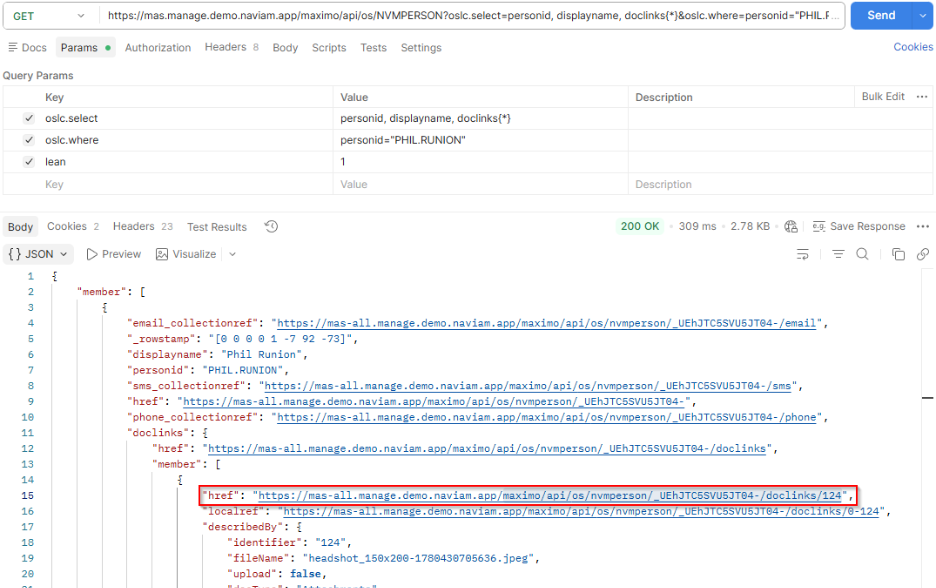
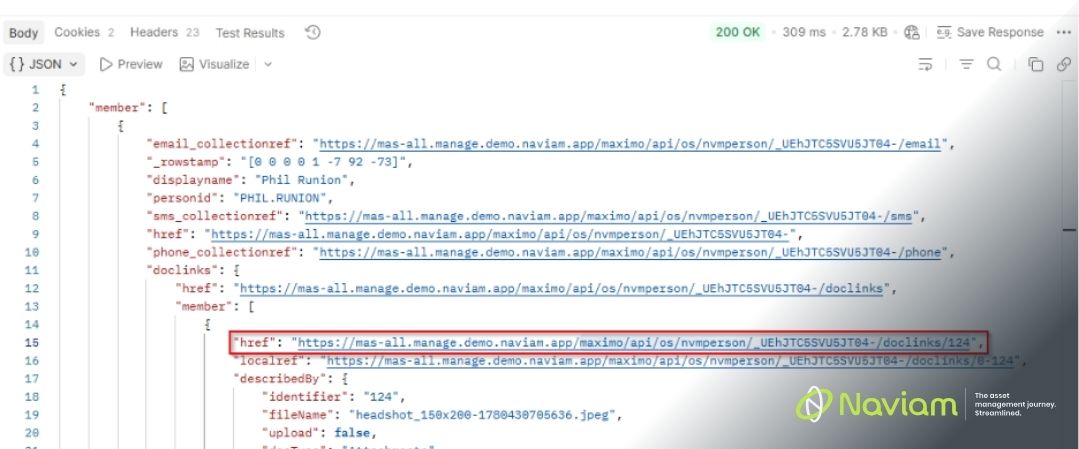
In the DOCLINKS object you can see the attachments information that we can use to pull the image. From the response payload, identify the record containing:
This href is what you will use in the next step.
Once you have the document reference, you can call the document endpoint directly. The nice thing about Postman is that it can take the raw document data in Base64 format and visualize it. If you are using another tool you will need to process the output into a file that is usable.
Example:
https://mas.manage.demo.naviam.app/maximo/api/os/m4m_doclinks/_MTYwNzc4L0F0dGFjaG1lbnRzLzM5NzE5L1BFUlNPTg--?oslc.select=documentdata&lean=1&inlinedoc=1
Key parameters:
Ensure your API call includes proper authentication, typically via API key or session token.
Avoid pulling large documents in bulk. Instead:
Large attachments can increase response size significantly. Consider streaming or alternative handling if needed.
The exact object structure may vary depending on your object structure configuration, but the pattern remains consistent.
This approach is simple once you understand the separation between metadata and content in Maximo. It is especially useful for:
If you are building against MAS APIs, this is a pattern you will reuse often.

Discover everything you need to know to modernize your asset management strategy.
Inside, you’ll learn:

ActiveG, BPD Zenith, EAM Swiss, InterPro Solutions, Lexco, Peacock Engineering, Projetech, Sharptree, and ZNAPZ have united under one brand: Naviam.
You’ll be redirected to the most relevant page at Naviam.io in a few seconds — or you can
go now.

.avif)