Maximo Application Suite Reliability Strategies: A Beginner's Guide
Geoff Stokes
November 2, 2026
Everyone is familiar with the asset reliability strategy of a motor vehicle.
You receive a logbook outlining the regular inspection tasks as recommended by the manufacturer along side their frequency. When you service the vehicle, your oil and filters are replaced automatically, and the technicians advise if any parts are to be replaced. You adhere to this because your vehicle warranty is tied to you fulfilling the service program. Once the warranty period is over you gain the ability to control the program and manage the risk.
I’m sure that very few people book a service visit to the date or the km/miles as per the recommended interval.
I have seen numerous instances where assets continue to be serviced according to the manufacturer's guidelines for many years after warranty expiration. In preparing the service program, manufacturers consider generic operation conditions, but do they specifically consider yours?
Reliability Strategies in Maximo Application Suite gives you a framework to build your own strategies and ensure you are correctly maintaining your assets suitable to your facility. The primary benefit is that you no longer need to create and keep track of disconnected sources of data and documentation to manage the assets reliably over their full lifecycle, and reliability engineers are now fully immersed in Maximo.
Prior to Reliability Strategies, an engineer would generate Asset Management Plans, and a Maximo specialist would need to (sometimes manually) convert these to PM and Job Plan records. As the AMP is updated over time, sometimes updating Maximo is forgotten. Keeping all the data inside MAS ensures all key information is retained in a single system and changes are managed efficiently.
As your assets age, routinely applying historical data and Asset Health information to the reliability strategy can optimise your maintenance budget while keeping in line with any regulatory requirement you must support.
This blog aims to provide a practical starting point for you to translate your reliability strategy into a Maximo PM program supported by historical data.
What Is Reliability Strategies in MAS?
A reliability strategy in Maximo Application Suite (MAS) is a structured plan that says how an asset can fail and which maintenance activities will prevent, detect, or reduce those failures. It replaces ad hoc preventive maintenance (PM) decisions with a documented, repeatable method based on reliability centered maintenance (RCM).
The capability is delivered by the Reliability Strategies application, which works alongside Maximo Manage. It gives you a library of asset-specific failure details and mitigation activities, and in Manage 9.0 and later, you can also create custom strategies that reflect your own studies and practices. The library is separately licensed content.
IBM describes the library as covering over 800 equipment types. Its composer tailors a strategy using recommended activities, intervals, asset criticality, and operating context, and a Reliability Engineer can simulate how strategy changes affect reliability and cost.
Why it matters for a new user:
One source of truth: Failure modes, risk, and maintenance actions live together instead of in spreadsheets and RCM workshop notes
Direct link to execution: Strategies connect to PMs and job plans in MAS Manage, so analysis turns into work
Connected to the wider suite: Reliability context gives meaning to condition data from Monitor and Health, rather than leaving sensor readings as isolated numbers
Core Concepts
MAS Reliability strategies follow the same logic as an FMEA (Failure Modes and Effects Analysis), the core tool of RCM: what must the asset do, how can it fail, what happens when it does, and what should we do about it. In Maximo the chain looks like this:
Asset class and subclass: The kind of equipment the strategy covers (for example, centrifugal pump). An optional asset configuration narrows it to a design or quality characteristic
Function: What the asset must do and to what performance level
Functional failure: A way the function is not met
Failure mode: What actually causes the functional failure. Maximo describes it by the component that fails, the failure mechanism (why it fails, such as wear or a leak) and the failure influence (how it comes about, such as age or poor installation)
Effects and consequences: What happens when failure occurs, and why that matters to safety, environment, production or cost
Risk: Each failure mode is scored with a risk priority number (RPN), before and after mitigation
Actions (mitigation activities): The preventive maintenance, inspection, condition-based maintenance, training, spares or redesign that detect or prevent the failure
Implementation: Strategies are assigned to assets and tracked, so the analysis turns into real work in Manage
Link to Manage failure codes: A failure mechanism is like a Maximo problem code, and a failure influence is like a Maximo cause code, so strategies line up with the failure codes your technicians already use on work orders
Operating context: The same asset can need different maintenance depending on how it is used. A strategy's operating context captures three pairs of conditions: criticality (critical or minor), duty cycle (high or low), and service condition (severe or mild). Library frequencies apply only to the context you select.
Why the failure-mode view matters: It changes the planning question from "when do we service this?" to "what is the best way to protect against each way this can fail?" Sometimes the answer is run-to-failure, because prevention costs more than the repair.
Start with the Library and the Right Access
Before building anything, browse the library to see what good looks like. The library was reported at launch to hold more than 58,000 failure modes across 800+ asset types, each with mitigating activities and frequencies.
To explore it:
In Reliability Strategies, open the Strategy library tab, pick an Asset class and click Get strategy
On Failure modes, work from the component down to the mechanisms and influences
On Mitigation activities, choose an operating context first. Activities that do not apply to that context show no frequency
Compare how effective each activity is at finding a failure mode before it becomes a failure
You can duplicate library strategies into custom strategies. Custom strategies appear on the Custom strategies tab and are not searchable within the library
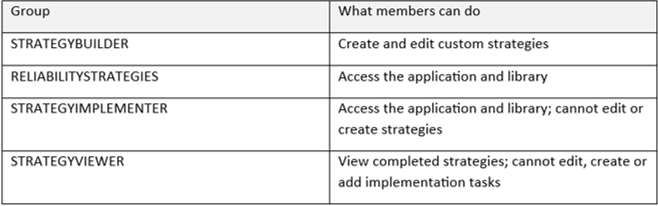
Security Access groups: In Manage 9.0 and later these groups exist once Reliability Strategies is installed. It is worth noting that the library data is separately licensed.
Step-by-Step to Create a Custom Strategy
Before you start, ensure:
Reliability Strategies is installed and you are in the STRATEGYBUILDER security group
You have chosen one asset class to start with and gathered any existing FMEA or RCM study notes for it
You know the operating context (criticality, duty cycle, service condition) the strategy should assume
Procedure:
Start the strategy: On the Custom strategies tab, click Create strategy and enter a unique name in the Strategy field.
Set the scope: Optionally enter an asset configuration, then choose an asset type and classification. If the class or subclass does not exist, the selection dialogs let you create one.
Complete the overview: Add co-owners, business drivers, data analysis needs, boundary, and the asset's operating contexts.
Define functions and functional failures
In Functions and functional failures, click Add function and name what the asset must do.
For that function, click Add functional failure and name each way it can fail to meet that need.
Save as Draft. Click Create. You must save before you can add failure details or explore actions.
Add a failure mode. On the Failure modes tab, click Add failure mode. Either click Create from template for a blank custom mode or select an existing failure mode and click Create from selected to start from library content.
Describe the failure mode. Fill in:
Component that can fail
Failure mechanism: why it fails (wear, leak)
Failure influence: how it comes about (age, improper installation)
Failure effects and Failure consequences
Failure class, then Problem code, then Cause code. Each field unlocks after the previous one is chosen
Score the risk before mitigation. Enter an RPN directly, or calculate it from severity, probability of occurrence, and detectability. In 9.2 you can also use reusable risk matrices with automated RPN calculation
Add actions:
Click Select actions, then choose an existing action or click Create action
Give it a unique name and an action type (for example preventive maintenance, inspection, condition-based maintenance, training, spare parts or redesign)
Optionally set frequency, whether it is single or recurring, interval or meter based, and effectiveness (low, medium, high)
Select the new action and click OK
Turn Tracking on for any action you want to follow through to implementation
Finish the failure mode. Re-score the RPN expected after the actions (the final RPN), select stressors, discovery opportunities, estimated first failures and repair time, then click Save failure mode. Repeat steps 6 to 10 for each failure mode
Save and send for review. Click Save, then Save and set the status to Ready for review when your team should check it
Complete it. After review, click Save and set the status to Complete. Once Complete, the strategy can no longer be changed
Put it to work (optional but where the value is):
On Mitigation activities, click Create mitigation activity to define recurring or non-recurring work, with labor hours
On Assets, click Assign assets and choose the assets that follow this strategy
On Tracker, create tasks against assets with an owner, due date and status, and review the recommended actions (those with tracking on). The Tracker is read-only until the strategy is Complete
What 9.2 Adds
Assign strategies to locations as well as assets
Copy all relevant fields when you create a custom strategy from a library strategy
Generate job plan tasks from actions and link existing PMs to mitigation activities
Link meter groups to strategies and meters to failure modes
Evaluate failure modes with configurable risk matrices
Connect a Strategy to a PM and Job Plan
In Maximo Manage 9.2, an action or mitigation activity in a reliability strategy can be linked to an existing preventive maintenance (PM) record, while its work steps can be used to create or support a job plan.
The process steps are strategy → failure mode → action or mitigation activity → PM → job plan → generated work order.
Before you start:
Complete and approve the strategy, identify the failure mode, and select the action or mitigation activity that will be implemented
Assign the strategy to the relevant asset or location and confirm that the action has the correct operating context, frequency, interval, or meter basis
Create or identify a job plan containing the required tasks, labour, materials, services, tools, safety information, and estimated duration
Create or identify a PM for the same asset, location, or route. Its frequency and lead time should support the interval recommended by the strategy
Procedure:
Open the strategy: In Reliability Strategies, open the completed custom strategy and locate the relevant failure mode and action or mitigation activity
Confirm the maintenance requirement: Check the action type, recommended frequency, recurring or single-work setting, interval or meter basis, effectiveness and tracking setting. Resolve any difference between the strategy recommendation and the proposed PM frequency before linking records
Prepare the job plan: Open Job Plans in Manage and create or review the job plan that delivers the action. Use clear task descriptions and include the craft, labour hours, materials, services, tools, safety controls and inspection measurements needed to address the failure mode. Set the job plan to an active status when it is ready for use
Create job plan tasks from the strategy where available: In Manage 9.2, use the action option that generates job plan tasks when you want the strategy content to seed the work instructions. Review the tasks generated in Job Plans and add the resources and safety details required by your organisation
Prepare the PM: Open Preventive Maintenance and create or review the PM for the assigned asset, location or route. Set its time-based or meter-based frequency, seasonal dates if applicable, lead time, work order status and other scheduling controls
Attach the job plan to the PM: On the PM, select the active job plan in the Job Plan field. If your configuration uses job plan sequencing, choose the appropriate sequence and confirm which job plan will apply at each PM occurrence
Link the PM to the mitigation activity: Return to the strategy's Mitigation activities area, open the relevant activity, and use the option to link an existing PM. Select the PM that applies to the assigned asset or location, confirm the relationship, and save the strategy implementation details
Track implementation: On the Tracker tab, confirm that the asset or location, recommended action, owner, due date, linked PM and implementation status are visible and correct
Test the end-to-end result: Generate a work order from the PM in a test environment. Verify that the work order has the correct asset or location, job plan tasks, labour, materials, tools, safety information, frequency and failure context. Correct the PM or job plan before production scheduling if anything is missing
Worked Example
A centrifugal-pump strategy identifies bearing wear as a failure mode. The selected action is a vibration inspection every 30 days. Create or update a job plan with isolation checks, vibration measurement points, acceptance limits, labour, and required tools. Attach that job plan to a 30-day PM for the pump, then link the PM to the strategy's vibration-inspection mitigation activity. Generate a test work order, and confirm that the technician receives the correct inspection tasks and measurement instructions.
Control point: The strategy explains why maintenance is required, the PM controls when it is generated, and the job plan defines how the work is performed. Keep their identifiers and revision history aligned so that a strategy change triggers a controlled review of the linked PM and job plan.
Good Practice and Common Pitfalls
Pilot one asset class: Build and complete one strategy, assign it to a handful of assets, and learn from the Tracker before scaling
Copy from the library where you can: Starting from library failure modes gives you a proven base, so you only adjust for your context. Bulk import of failure mode details is also available through IBM Marketplace
Match effort to criticality: Analysing every failure mode pays off most for high-criticality equipment; for low-criticality items a lighter approach is usually enough
Set the operating context early: Frequencies and activities depend on it, so a wrong context gives wrong intervals
Treat Complete as a lock: Fields become read-only, so finish the team review in Ready for review first. The Duplicate action lets you start a revised copy; confirm that fits your change-control process
Confirm data ownership questions: When custom strategies launched in 9.0, a reviewer reported the content was held in a client-dedicated library outside the Manage database. Check import, export, and ownership with IBM if this matters to you
Do not stop at the document: Value comes when actions become PMs, job plans, and tracked tasks, and when failures seen in the field feed back into the strategy
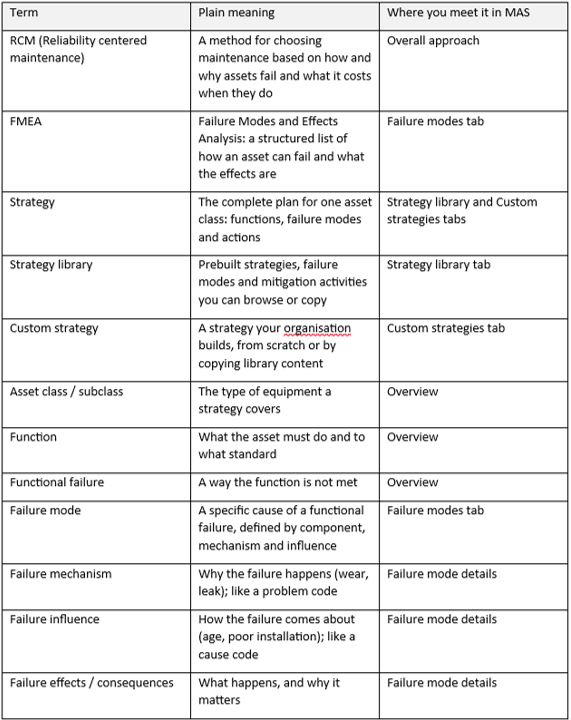
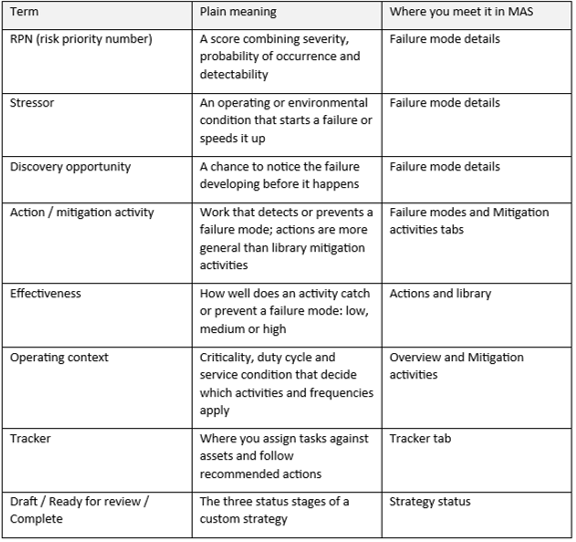
Terminology
The reliability terms below appear throughout the application and in RCM conversations